


Why your best ideas keep disappearing
If you run a business, you are also running a life alongside it. The school run, the supplier quote, the content idea you had in the shower, the client you promised to call back. Most of it lives in your head, a notes app, three email drafts and the back of a receipt.
That is not a discipline problem. It is a capture problem. When there is no single place for a thought to land, it either gets lost or it keeps looping in your head at 2am.
CEOs have always solved this the same way: they have a PA. Someone who catches every task, files it, reminds them at the right moment and hands them a short list each morning. In 2027, you can build a version of that yourself with two tools you may already use: Notion and an AI assistant like Claude or ChatGPT.
This guide shows you exactly how to set it up in about an hour.
The setup at a glance: three tools, three jobs
The system works because each tool does one job only. Notion holds everything, AI does the admin, and your paper planner is where you actually decide what matters.
| Tool | Its job | What you do there |
|---|---|---|
| Notion | The filing cabinet: one inbox for every task, idea and reminder | Tick things off, glance at the list, set phone reminders on dates |
| AI assistant (Claude, ChatGPT) | The PA: captures, files, sorts and briefs you | Talk or type in plain English, read your morning brief |
| Paper planner | The thinking space: weekly priorities, goals, focus | Plan your week, choose your top three, review progress |
Step 1: Build one inbox database in Notion
Create a single Notion database called Inbox. Not one for tasks, one for ideas and one for reminders. One. Splitting them is how things get lost again.
Add these five properties:
| Property | Type | Options |
|---|---|---|
| Type | Select | Task, Idea, Reminder |
| Area | Select | The parts of your life and business, e.g. Clients, Marketing, Finance, Products, Admin, Home |
| Due | Date | Leave blank for ideas. Add a Notion reminder for anything time-specific |
| Status | Select | Inbox, Next, Doing, Waiting, Done |
| Priority | Select | High, Normal, Someday |
Then create three views so the list never feels overwhelming:
Today: Due is today or earlier, Status is not Done.
Waiting on: Status is Waiting. Chasers, quotes, replies you need from other people.
Ideas: Type is Idea. Your parking space, reviewed once a week.
An Area called Home matters more than you think. Your business and your life share the same 24 hours, so they belong in the same list.
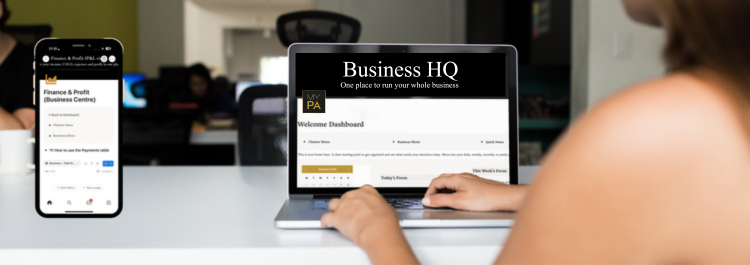
Prefer it done for you? Business HQ goes one step further. Instead of one inbox, it has a ready-made home for each kind of thing: tasks and projects, ideas, events, follow ups and bills, all connected and already showing on your Today, Weekly and Monthly pages. You still never have to choose where something goes. The Your AI PA page gives you a setup prompt that teaches Claude or ChatGPT where everything belongs, plus six everyday prompts ready to copy. Just tell your AI what is on your mind and it files it in the right place.
New to Notion? Read What Is Notion and How I Use It Alongside My Planner first, or the simple guide to using Notion for business.
Step 2: Connect your AI to Notion and capture by talking
This is where the magic happens. Once your AI can see your Notion workspace, you stop typing tasks into forms and start talking to your PA.
Here is how the four best-known assistants compare for this job as of late 2026:
| AI assistant | How it connects to Notion | Can it add tasks for you? | Best for |
|---|---|---|---|
| Claude | Official Notion connector in Settings, Connectors | Yes, reads and writes | Business owners who want capture, filing and a daily brief in one place |
| ChatGPT | Notion app, added from Apps | Yes, it asks your approval before creating or editing | People already using ChatGPT every day |
| Microsoft Copilot | Notion connector in Microsoft 365 Copilot, switched on by an admin | No, read-only | Searching your Notion notes while you work in Word, Outlook or Teams |
| Google Gemini | Through an automation tool such as Zapier | Only via a set-up automation | People who live in Gmail and Google Calendar |
Our honest recommendation: for this system, use Claude or ChatGPT. Copilot can read your Notion pages but cannot add to them, and Gemini needs an extra automation tool in the middle. Features change quickly, so check each app's settings when you set up.
Already use ChatGPT alongside a planner? Plan Smarter: How to Use ChatGPT with Your Planner shows more ways to work with it.
What to say to your AI
Once connected, tell your assistant once how your inbox works, then just talk normally:
Setup prompt: "I have a Notion database called Inbox with Type, Area, Due, Status and Priority. Whenever I tell you a task, idea or reminder, add it there with the right properties. Ask me only if the due date is unclear."
A task: "Add: chase the printer for the quote, Friday, high priority."
An idea: "Idea: a spring bundle for returning customers."
A brain dump: "Here is everything in my head this morning" followed by a messy list. Your AI sorts it into tasks, ideas and reminders for you.
A clean-up: "Move anything overdue by more than a week to Someday and tell me what you moved."
The brain dump is the one that changes everything. Five minutes of talking replaces half an hour of sorting.
Step 3: Get a daily brief from your AI
A PA does not just take notes. They hand you a short list every morning. You can set this up too.
Both Claude and ChatGPT can run a scheduled task: a prompt that runs automatically at a set time and sends you the result. Set one for every weekday at around 7:30am with something like:
"Check my Notion Inbox. Give me: anything due today, anything overdue, and anything marked Waiting that I should chase. Maximum 7 items, most important first. Keep it short."
The limit of seven matters. A brief with 30 items is just another list to feel guilty about.
One tip: use the AI brief for your daily overview, and Notion's own date reminders for anything time-specific like a 3pm call. Notion will ping your phone at the exact time; the AI is better at the bigger picture.
Step 4: Turn your list into a planned day
A to-do list tells you what exists. A diary tells you when it happens. Once your inbox is full, ask your AI to connect the two:
“Look at my Notion Inbox and my Today view. I have 9am to 3pm to work today, with a call at 11am. Suggest a time-blocked plan for my day. Put the most important thing first and leave a gap for admin.”
Treat the answer as a draft, not an order. Take it to your paper planner, choose your top three for the day, and write them into your daily schedule. The AI does the sorting; you make the final call.
Step 5: The 5-minute Friday idea sweep
Ideas are the easiest thing to capture and the hardest thing to act on. Without a weekly review, your Ideas view becomes a graveyard.
Every Friday, ask your AI:
"Show me every idea added this week. For each one, suggest: do it next week, park it as Someday, or delete it."
Then you make the call on each one. It takes five minutes, and it means every idea gets a fair hearing without stealing focus from this week's work.
If you already do a weekly business review, fold the sweep into it so it becomes part of the same habit. Need a starting point? Use the Weekly Review Template.
Where a paper planner still wins
AI and Notion are brilliant at holding everything. They are not good at helping you decide what actually matters. A list of 80 things is still a list of 80 things, however neatly it is filed.
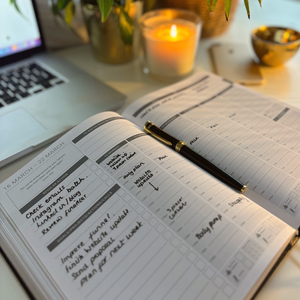
That is the job of a paper planner. Writing by hand slows you down just enough to think. It is where you:
Choose your top three priorities for the week from everything in your inbox
Set and track your goals for the year and the quarter
Review what worked, what did not and what to change
Plan your business and your life side by side, so neither one quietly takes over
Think of it this way: Notion is the filing cabinet, your AI is the PA, and your planner is the desk where you, the CEO, make the decisions.
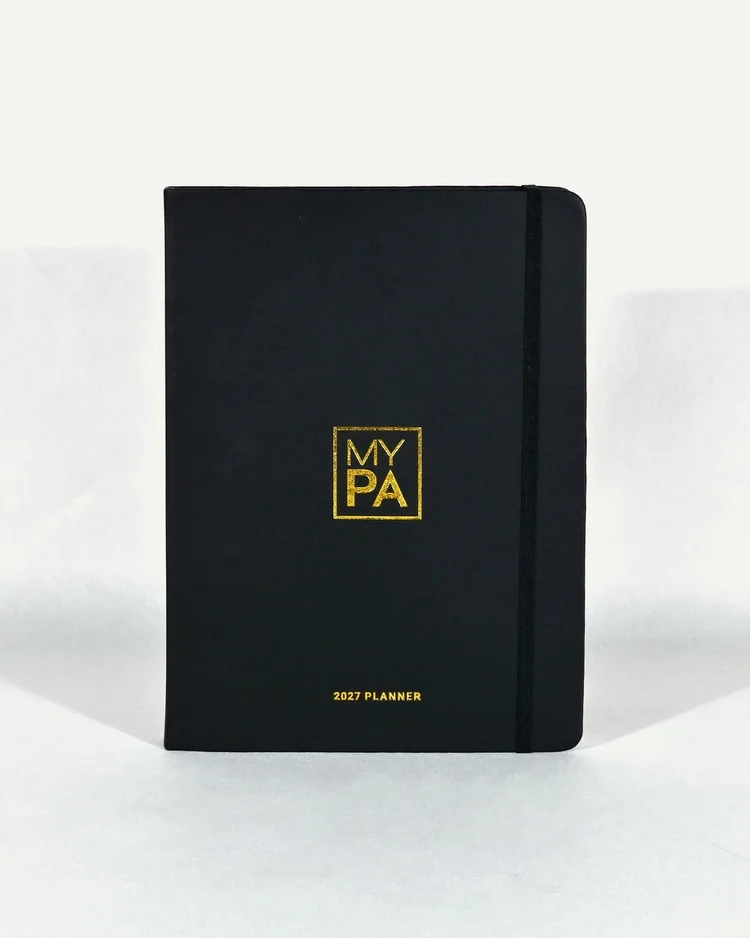
The MY PA 2027 Business Planner is built for exactly this: yearly goals, quarterly plans, weekly priorities and space for your life as well as your business. If you want a quieter, more focused planning page alongside your digital setup, the productivity planner is a good place to start.
Not sure whether to go digital or paper? Read Digital Planner vs Paper Planner: Which Is Better for Business?
Key takeaways
Use one Notion inbox for every task, idea and reminder, not separate lists.
Connect Claude or ChatGPT so you can add things by talking, without opening Notion.
Set a weekday morning brief of no more than seven items.
Ask your AI to turn your Today list into a time-blocked day, then choose your top three on paper.Review ideas for five minutes every Friday so they do not pile up.
Keep a paper planner for the decisions: weekly priorities, goals and reviews.
Frequently asked questions
Can ChatGPT add tasks to Notion?
Yes. Once you connect the Notion app inside ChatGPT, it can create and update tasks in your databases, and it asks for your approval before making changes.
Can Claude connect to Notion?
Yes. Claude has an official Notion connector that can search, read and add to your workspace, so you can capture tasks and get summaries in plain English.
Does Microsoft Copilot work with Notion?
Partly. Microsoft 365 Copilot has a Notion connector that lets it read your pages, but it cannot add or edit tasks, and an admin has to switch it on.
Do I need a paid Notion plan for this?
No. A free Notion account is enough for a single inbox database. You may need a paid plan on your AI assistant for connectors and scheduled tasks.
Is it safe to connect AI to my Notion workspace?
You choose what the AI can see when you connect it, and you can disconnect at any time. Keep sensitive client information in a separate page you do not share.
Will this replace my paper planner?
No, and it should not. Notion and AI hold and sort everything; your planner is where you decide what matters this week.
Is there a ready-made Notion template that works with AI?
Yes. Business HQ is a done-for-you Notion workspace for running your business and your life in one place. It includes a Your AI PA page with a copy-and-paste setup prompt and six everyday prompts: capture, brain dump, morning brief, plan my week, Friday idea sweep and weekly review.
Your next step
Start with the thinking, then build the system around it. Download the free 2027 planner and use it to choose your priorities for the year, then set up your Notion inbox to catch everything else.
Want the Notion side done for you? Business HQ is a ready-made Notion workspace for running your business and your life in one place, and it works with Claude and ChatGPT from day one. Want it for your personal life too? The MY PA Planner for Notion includes the same AI PA setup.