
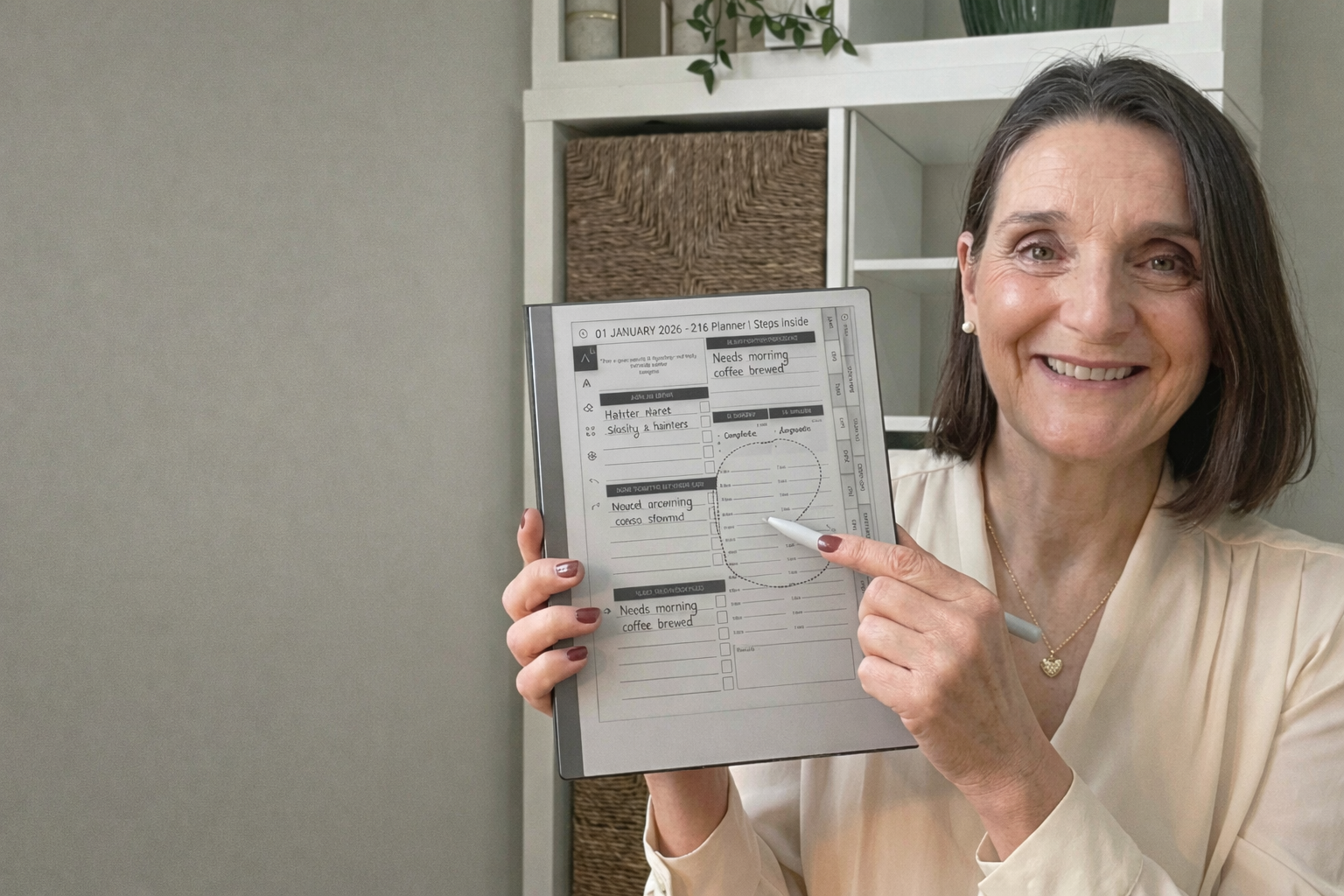
The Remarkable 2 is one of the cleanest, simplest planning devices for entrepreneurs. It removes distractions, feels like paper and gives you a calm space to plan your week, projects and ideas without overwhelm.
If you want to use your MY PA Planner on your Remarkable 2, the good news is that it takes less than a minute to upload. Here is the simplest step-by-step guide to get you set up with the 2026 planner.
How to Upload the MY PA Planner to Your Remarkable 2
This is the cleanest, easiest method.
Step 1: Download your MY PA Planner PDF
Save the planner to your computer.
Keep it somewhere easy to find, like your Desktop or Downloads folder.
Step 2: Go to my.remarkable.com
Visit the cloud dashboard on your browser.
(This is the hub where all your files sync.)
Log in if needed.
Step 3: Drag and drop the PDF into your Remarkable cloud
Simply grab the MY PA Planner PDF and drag it into the web window.
You will see it upload instantly.
Step 4: Wait for your Remarkable to sync
Now turn on your Remarkable 2 and make sure WiFi is enabled.
Your planner will appear within a few seconds.
If it doesn’t show immediately:
tap Menu
tap Sync
Step 5: Move the planner into a dedicated folder
For a clean setup:
Tap Files
Tap Create Folder
Name it Planner 2026
Move the MY PA Planner inside it
This keeps everything tidy and easy to find.
Step 6: Add bookmarks for quick navigation
Inside the planner, you can bookmark key sections like:
Year Overview
Monthly pages
Weekly plan
Projects
Finances
Tap the little ribbon icon at the top to bookmark any page.
This makes switching pages effortless.
Step 7: Use layers for notes and planning
Remarkable lets you use layers, which means you can:
write on top of planner pages
add notes without damaging the layout
toggle layers on and off
It keeps your planning neat without losing your original pages.
Step 8: Duplicate pages if needed
If you need more space:
tap the page menu
select Duplicate Page
Great for extra notes, mind maps or weekly overflow pages.
Using an Onyx Boox? Here's how to install a planner on Onyx Boox step by step. [Here]
⭐ You’re ready to plan your 2026 year on the Remarkable 2
Download the free MY PA Digital Planner
Try the full system and start planning instantly.
Download your free planner here.
Get the full 2026 MY PA Planner (Digital Edition)
Designed for the Remarkable 2, GoodNotes, Notability, Kindle Scribe and more.
Explore the 2026 digital planner here
Using an Onyx Boox instead? Read our guide on how to use Onyx Boox for business planning
Here's how to install a planner on Onyx Boox step by step
Here is a video on how to install your planner pdf on Remarkable 2 and paper Pro